Setting up Your Overlays
Everything on this page is a one-time job. Once it is done you never touch it again.
The short version. Download one file from your dashboard, import it into OBS, and every overlay appears in the right place at the right size. You do not have to type any addresses or measurements in by hand.
Setting up OBS with Whatnot
OBS is the free program that puts your camera and your overlays together and sends the result to Whatnot, eBay Live or Fanatics Live. If you already stream, you may already have it. If you do not, download it from obsproject.com first and come back here. If you can't figure out how to get OBS connected to Whatnot, watch this video.
-
Download your overlay file
On your dashboard, press Download my OBS file. It saves a file called United Breakers Preset.json, usually into your Downloads folder. This file has your own private addresses inside it, so do not post it anywhere or send it to anyone.
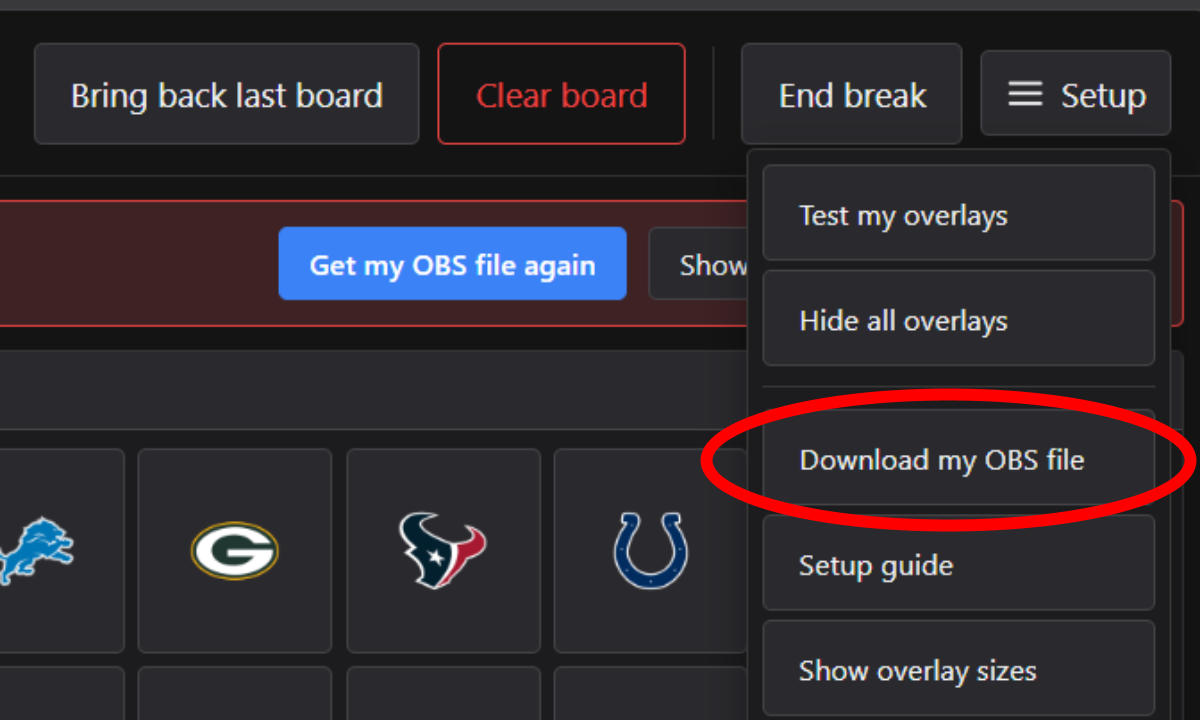
Your dashboard. The button is in the setup box at the top.
-
Open OBS and find the Scene Collection menu
Look along the very top edge of the OBS window, above everything else, for the word Scene Collection. It is a menu, next to File and Edit. It is not inside the app. It is on the bar at the top.
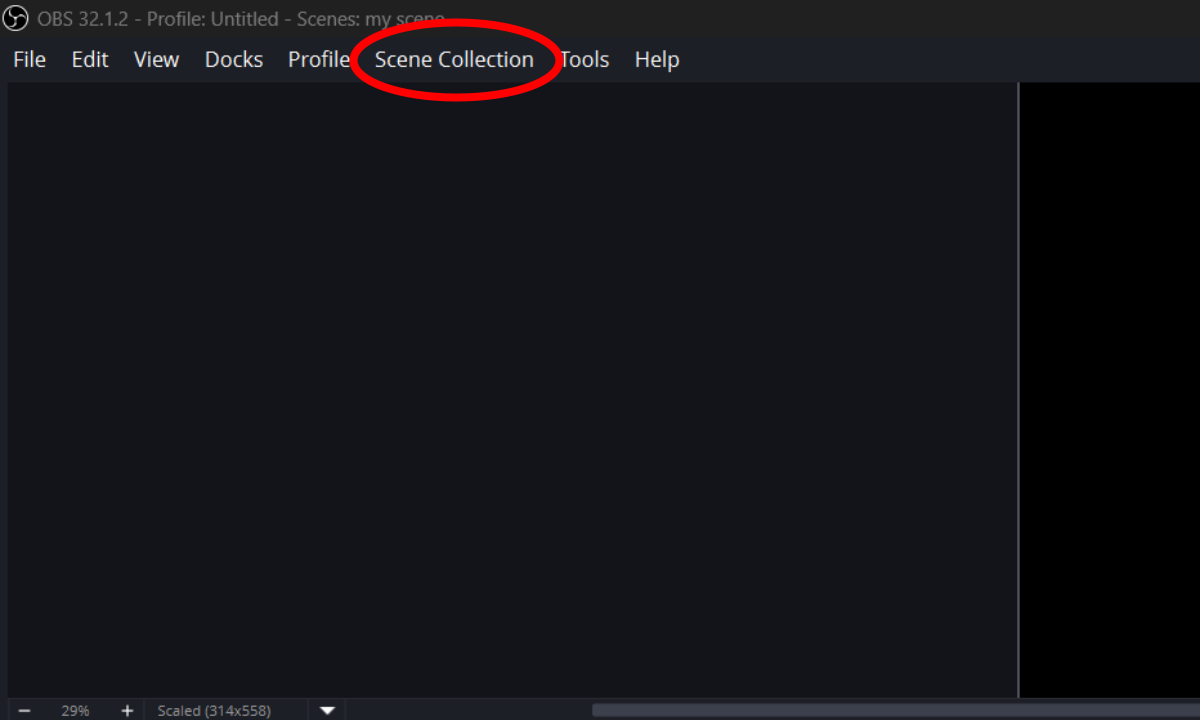
The OBS menu bar. Scene Collection is the sixth item along.
-
Choose Import
In that menu, click Import. A window opens asking for a file.
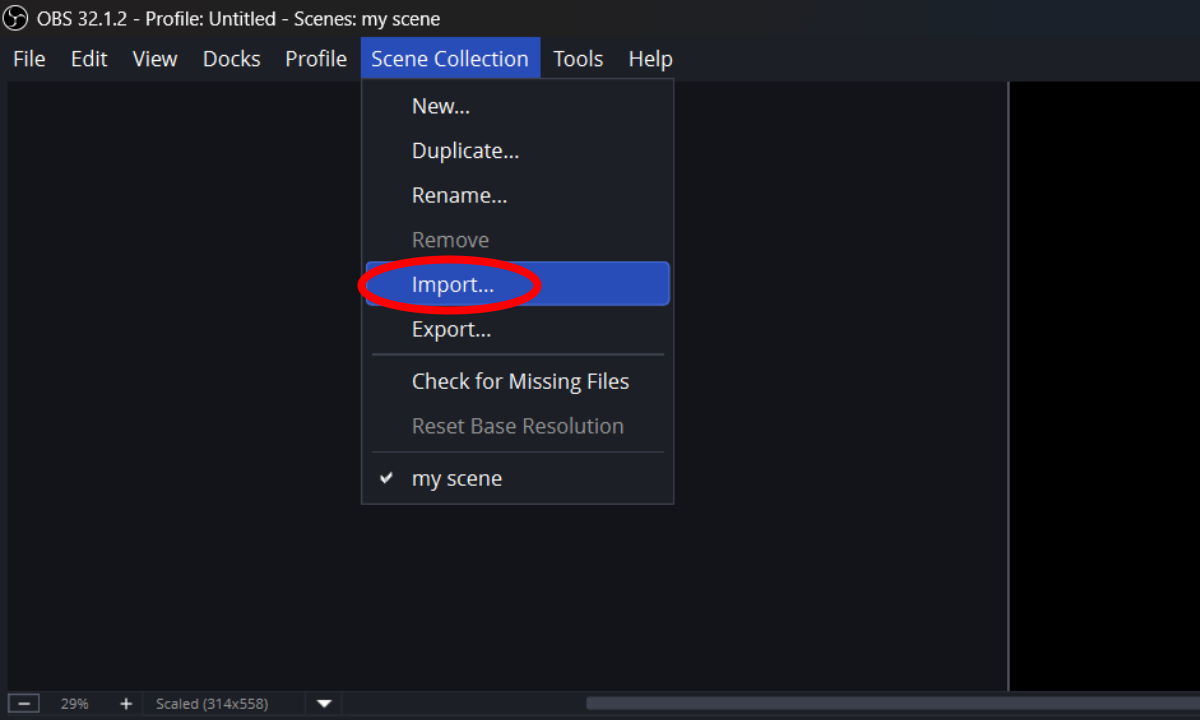
-
Pick the file you just downloaded
Press the three dots, go to your Downloads folder, and choose United Breakers Preset.json. Then press Import.
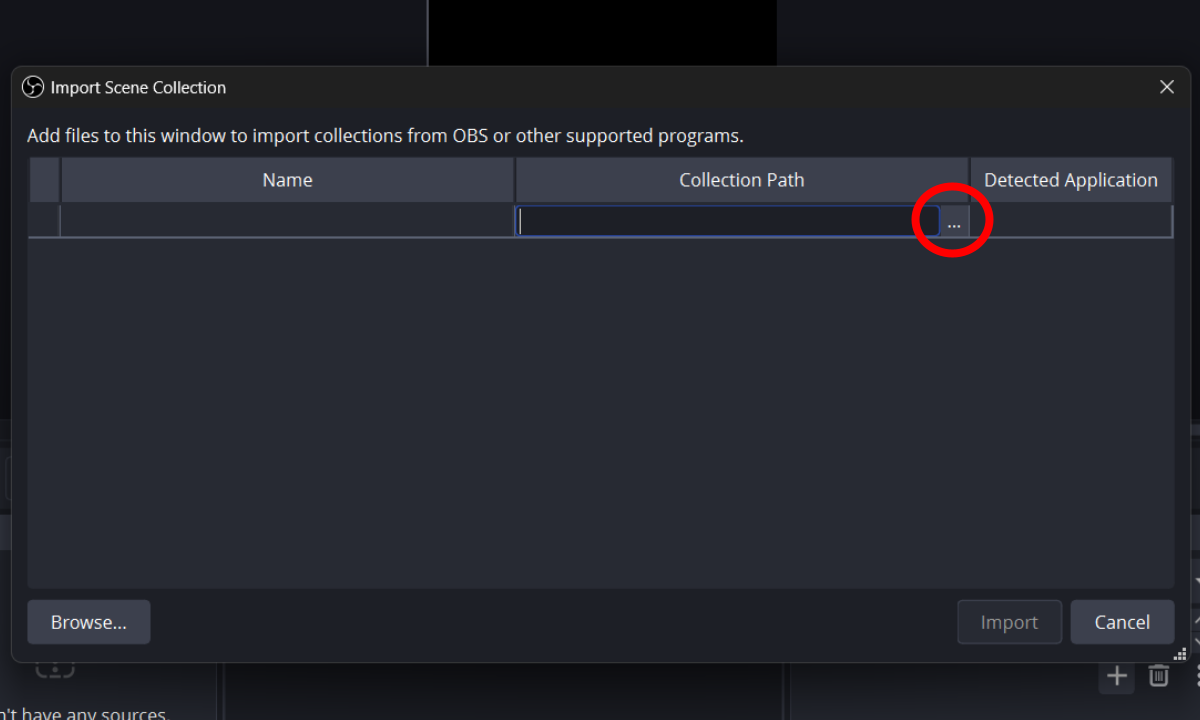
-
Switch to the new scene collection
Open Scene Collection again and click United Breakers in the list. Your overlays appear, already sized and placed on a 1080 × 1920 vertical canvas, the shape Whatnot and the others stream at.
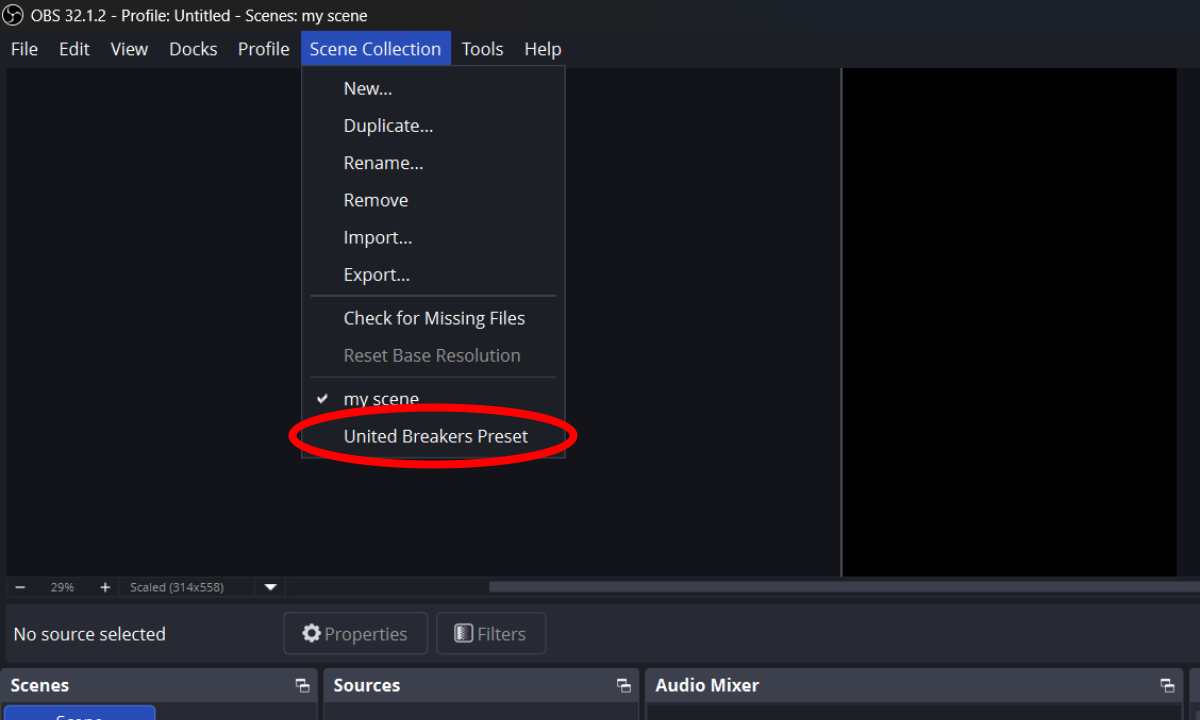
That is the setup finished. Everything below is for checking it and for when something looks off.
Checking it works
Open your control panel for a league. At the top you will see how many of your overlays OBS has picked up.
- All connected: you are done. Nothing else to do.
- Some connected: tap the status to see which one is missing.
If you want to watch it actually happen, press Test my overlays in the panel. It plays one reveal so you can see it fire in OBS. Nothing is marked sold and it is safe to press while you are live.
When something looks wrong
The overlay is a blank or black box in OBS. Right-click the source in OBS, choose Properties, and press Refresh. If it is still blank, check the address in that source matches the one on the pane in your control panel. Press the link button on the pane to copy it.
I reset my links and now nothing shows. Resetting deliberately breaks every address you had. Download the OBS file again and import it again, or copy each new address from the control panel into the source that already exists.
There is no sound. The highlight clips are deliberately silent so your own commentary sits on top. The music is separate: check the Music volume slider in the Animation Playback pane, and check the browser source in OBS does not have Control audio via OBS turned off.
Everything vanished mid-break. Open the menu in your control panel and look for Show all overlays. If it says that rather than “Hide all overlays”, they are switched off. A red strip across the panel says so too, with a button to bring them back.
It says another break is still open. Only one league can be live at a time. The message names the league and offers to end it for you. Your board for each league is saved separately, so nothing is lost either way.
Overlay sizes
You only need these if you are adding sources by hand instead of importing the file. The Pro overlays size themselves to whatever you give them; these are the numbers they are designed around.
| Overlay | Width × height |
|---|---|
| Team Board | 1080 × 480 |
| Text Ticker | 1920 × 160 |
| Popups | 700 × 700 |
| Team Randomizer | 640 × 820 |
Stream Deck
Only relevant if you own an Elgato Stream Deck. It is a small box of physical buttons; if you do not have one, ignore this entirely. Everything works without it.
In your control panel, open the menu and choose Stream Deck. Turn on Show endpoints on controls and each button in the panel shows its own address. In the Stream Deck app, add a Website action, paste the address, and tick the option to send a POST request. One button per team, plus buttons for spin, replay and each popup.
Keep these addresses private. Anyone who has one can drive your overlay.
Still stuck? Ask us on Discord, tell us what you see on screen and we will get you running.